How it works

How DoveVolo works

A step-by-step guide with real screenshots of the site. In a few minutes you'll know how to use everything.

Searching for a trip

The home page is a single form. From top to bottom you say how much you want to spend, where you leave from, where you'd like to go, when and at what time. The only required field is the departure airport.

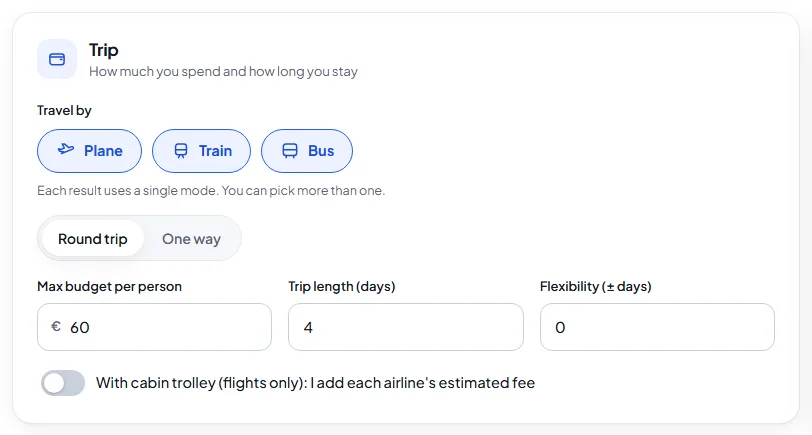
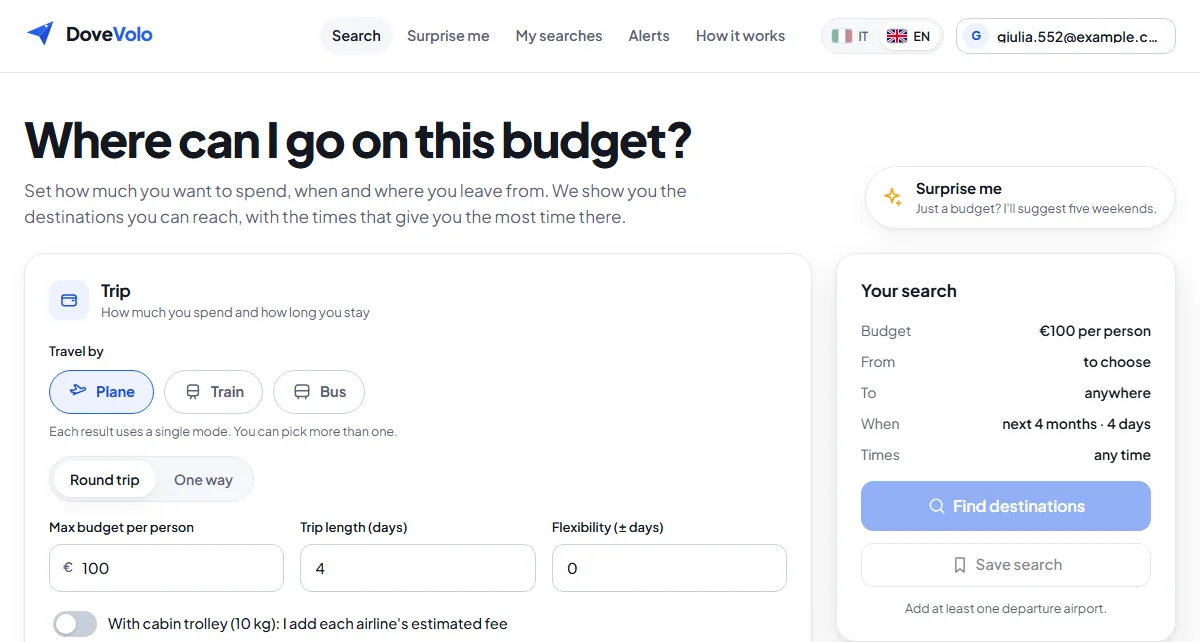
1. Budget and length

Choose Round trip or One way.

The budget is the maximum per person for all the tickets of the trip, outbound and return together.

Trip length (days) counts calendar days: 4 days leaving on the 8th means the 8th, 9th, 10th and 11th, flying back on the 11th.

Flexibility widens the search: with ±1, departures a day earlier or later and trips a day shorter or longer also count.

Only have a budget and no idea where to go? Next to the title there's Surprise me: see the chapter "Ideas and special trips".
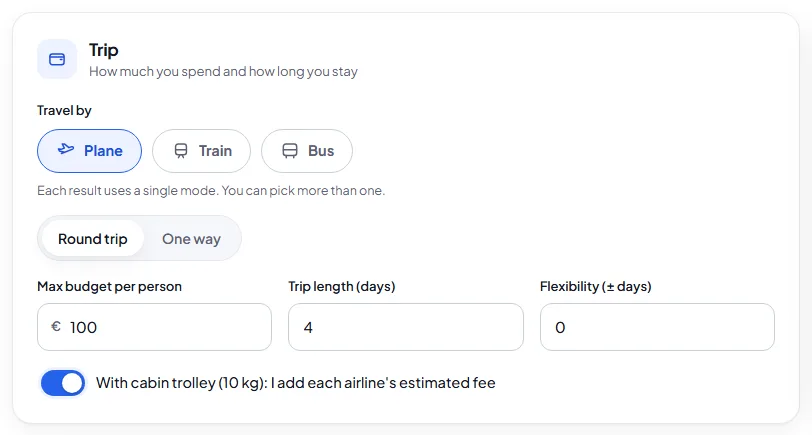
Trip section with trip type, budget, days and flexibility
Tap the image to enlarge it

2. Cabin trolley

Low-cost airlines charge extra for a 10 kg cabin trolley. Turn on With cabin trolley (10 kg) and we add each airline's typical fee to every price, for example about €20 per flight with Ryanair and €25 with Wizz Air.

The fee counts towards your budget: you only see trips that really fit, bag included. Next to the price you'll see "with bag ~€X".

It's an estimate: the exact cost depends on route and date, and you'll see it on the airline's website.

Switch to include the cabin trolley in the price
Tap the image to enlarge it

3. Where you leave from

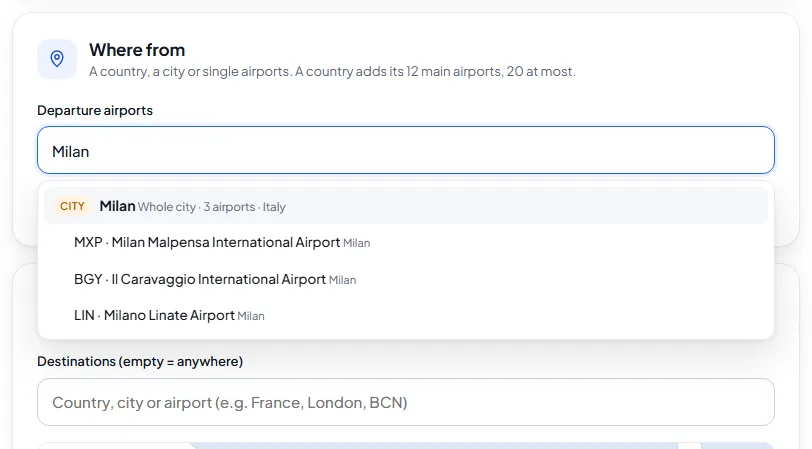
No airport is picked for you: type where you leave from. You can type a country, a city, an airport or its three-letter code.

In the list, the country or city is at the top and its airports are below. Pick the top row to take them all, or just the airports you need.

A whole country adds its 12 main airports for low-cost flights. You can leave from up to 20 airports per search.

To remove an airport press the × on its tag, or Remove all.

Departure field with Milan at the top and its three airports below
Tap the image to enlarge it

4. Where you want to go, by typing

Leave it empty to search anywhere, or narrow it down.

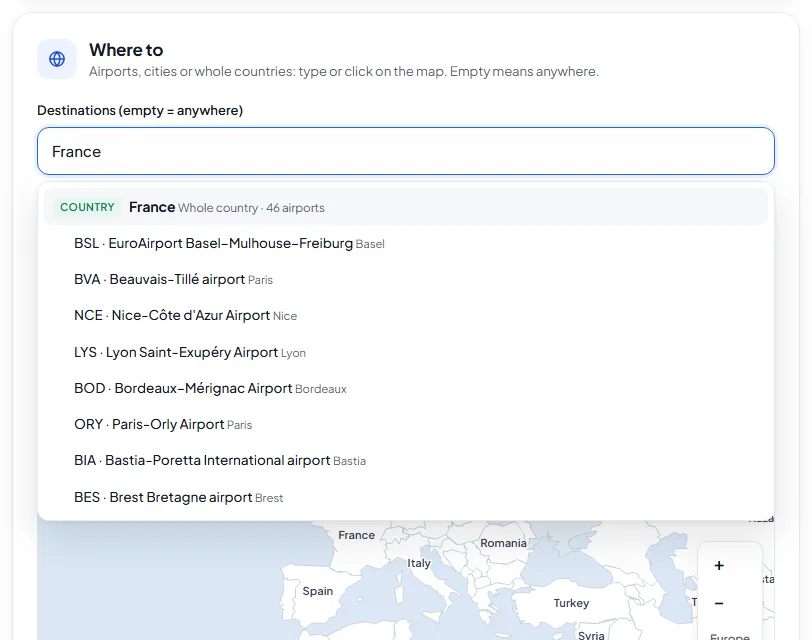
Type a country and all its airports appear below: pick the whole country or just some airports.

The same goes for cities with several airports: the whole of London means Heathrow, Gatwick, Stansted, Luton and the others.

You can also pick a single airport.

Destinations field with France at the top and its airports below
Tap the image to enlarge it

5. Where you want to go, on the map

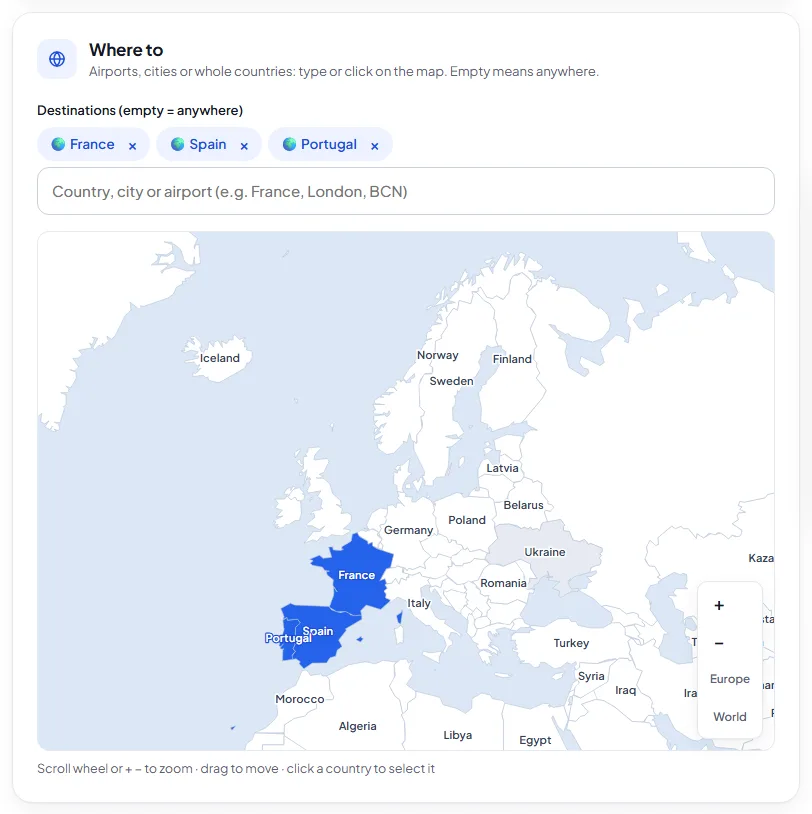
Click a country to add it: it turns blue and appears among your destinations. Click again to remove it.

Zoom with the mouse wheel or with + and −, drag to move around, and go back to the starting view with Europe or World.

Names appear when there's room: zoom in to see small countries too.

Map with France, Spain and Portugal selected in blue
Tap the image to enlarge it

6. When to leave

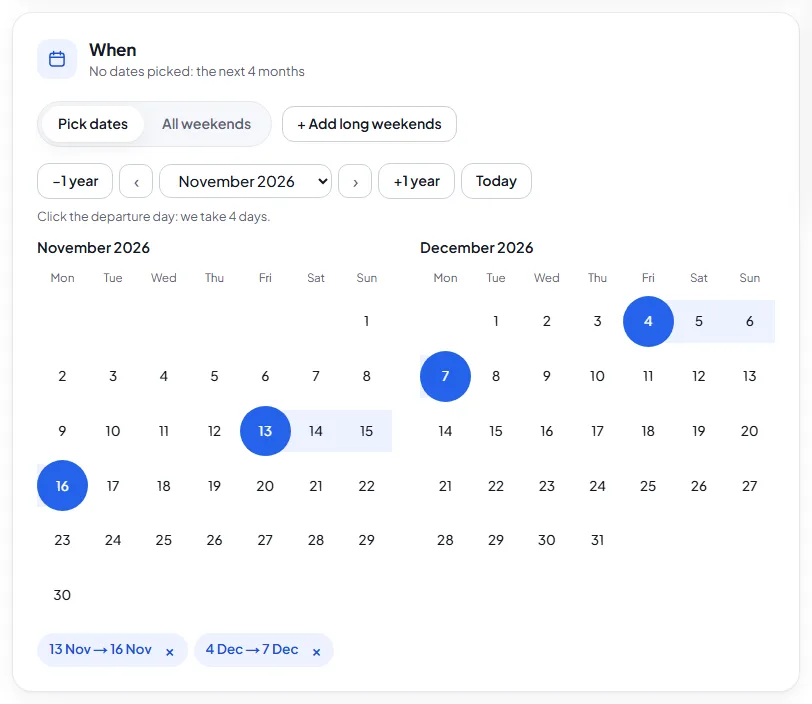
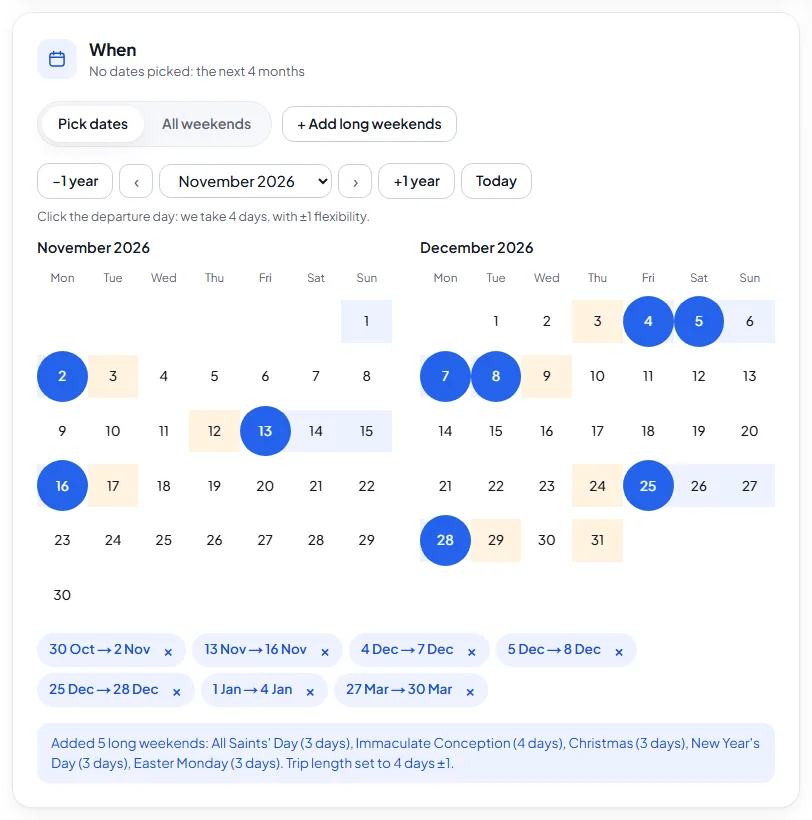
Click the day you'd like to leave: the calendar highlights the days of the trip and, in yellow, the flexibility days.

You can pick several alternative departures, for example two different weekends: we search them all.

To remove a departure click it again or press the × under the calendar. With no departure at all we search the next four months.

Calendar with two departures selected and the trip days highlighted
Tap the image to enlarge it

7. Long weekends, in one click

+ Add long weekends adds the Italian public holidays of the next six months, Easter Monday included, already joined to the weekend.

For example, the 8 December holiday on a Tuesday becomes Saturday to Tuesday, with just one day off work. The length changes to 4 days ±1.

Calendar with public holiday long weekends added as departures
Tap the image to enlarge it

8. Every weekend

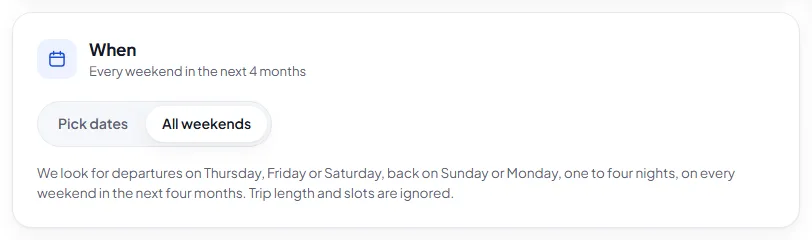
If any weekend works for you, choose Weekends: we search departures on Thursday, Friday or Saturday with return on Sunday or Monday, over the next four months.

In this mode you don't need the trip length or the calendar.

Weekends mode turned on
Tap the image to enlarge it

9. At what time

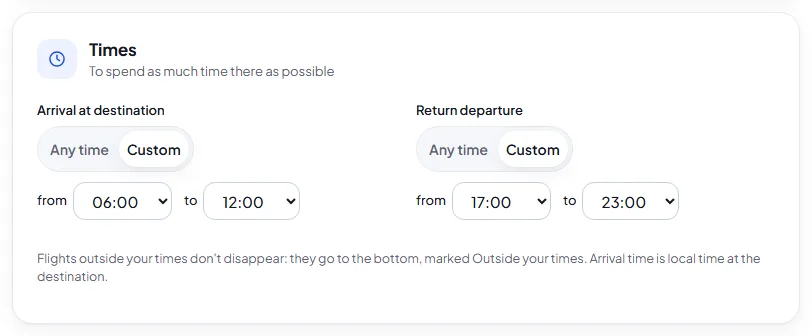
Choose Custom and set the times: Arrival at destination from… to… and Return departure from… to…. For example, arrive between 6:00 and 12:00 and fly back between 17:00 and 23:00, to spend as long as possible there.

If from is later than to, the range crosses midnight, for example from 22:00 to 2:00. The arrival time is local time at the destination.

Flights outside your times don't disappear: they go to the bottom and are marked Outside your times.

Times with arrival from 06:00 to 12:00 and return departure from 17:00 to 23:00
Tap the image to enlarge it

By train and by bus

Besides flights, DoveVolo searches trains and buses in Italy and Europe: Trenitalia, FlixBus and RegioJet with real prices, Italo with timetables. Each result uses a single means of transport, with any changes.

10. Choose how to travel

At the top of the Trip panel there are Plane, Train and Bus. Only Plane is on by default: tap Train or Bus to switch them on, even all three together.

The cabin trolley only applies to flights. Budget, trip length and flexibility apply to every means of transport.

With no dates, trains and buses are searched over the next 4 weekends: they need one search per day. For another period pick dates on the calendar.

Trip panel with the Plane, Train and Bus buttons switched on
Tap the image to enlarge it

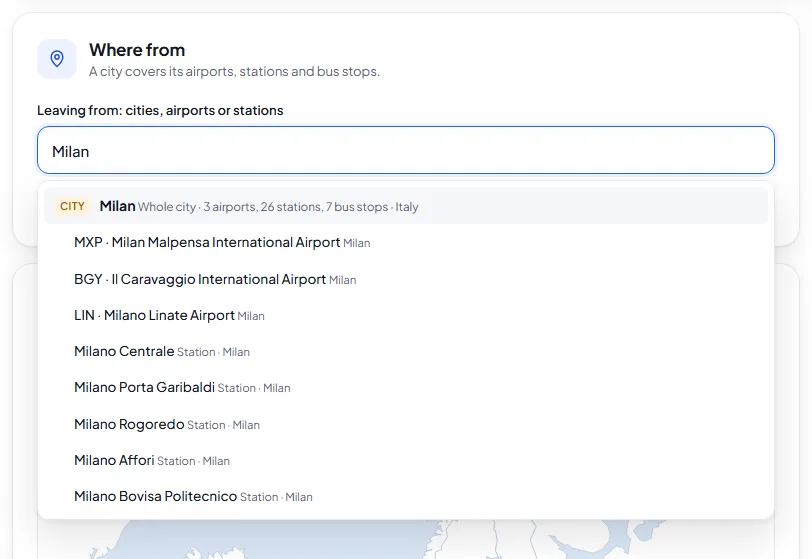
11. Cities, stations and stops

With train or bus switched on, searching for a city shows its airports, stations and bus stops. Picking the city means leaving from all its stations and stops.

You can also pick cities with no airport, such as Siena or Perugia, and single stations: they count for their city.

List with Milan and its airports, stations and bus stops
Tap the image to enlarge it

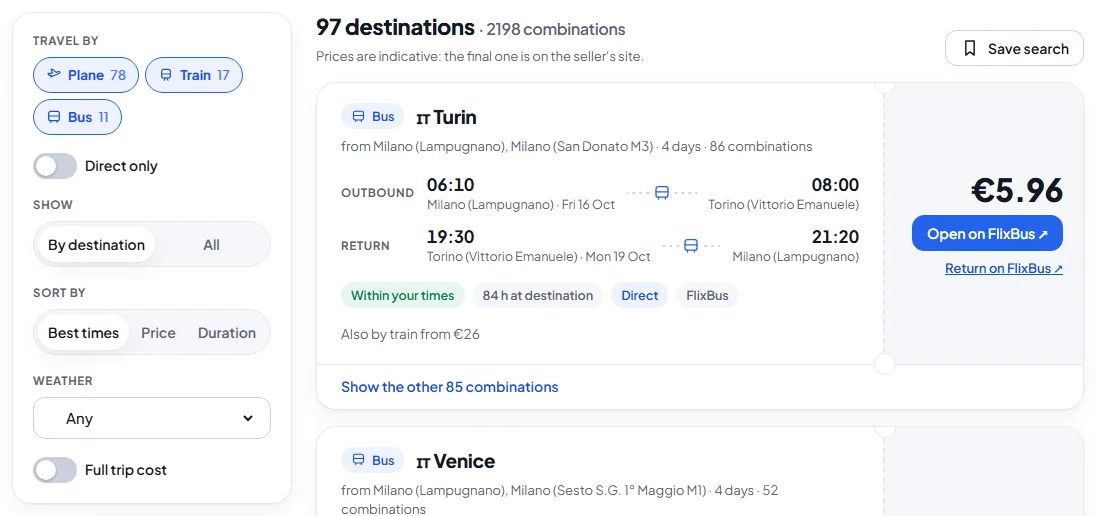
12. Trains and buses in the results

Each destination has a single card: the best trip, with the means of transport at the top and, below, what it costs by the others ("Also by train from €26").

Train and bus cards show stations and stops, train number, changes with waiting time and seats left. Outbound and return are booked separately: there is a link for each.

In the filters choose which means of transport to see, direct trips only or sorting by duration.

Results with the Travel by filter and bus and train cards
Tap the image to enlarge it

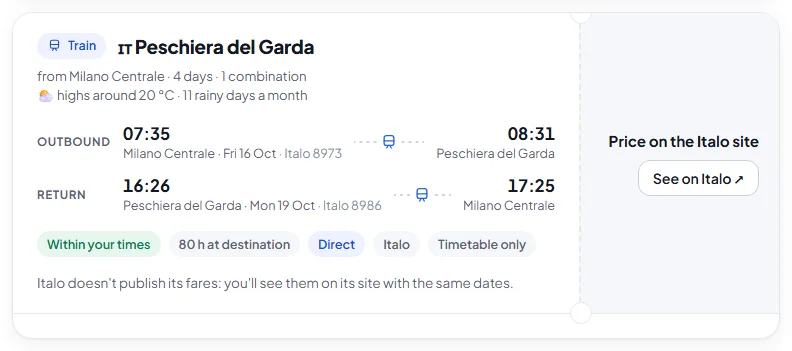
13. Italo: timetables and price on its site

Italo does not publish its fares: for its trains we show times and number, with a button to see the price on the Italo site for the same dates.

These cards always come after the ones with a price and do not trigger alerts.

Card of an Italo train saying Price on the Italo site
Tap the image to enlarge it

Reading the results

Press Find destinations. Results come in as the airlines reply, usually within a few seconds.

14. Progress

In the first phase we look for the cheapest destinations on Ryanair, Wizz Air and Aviasales. In the second we dig into the best ones across all possible dates. When the bar is full the search is done.

Progress bar of a completed search
Tap the image to enlarge it

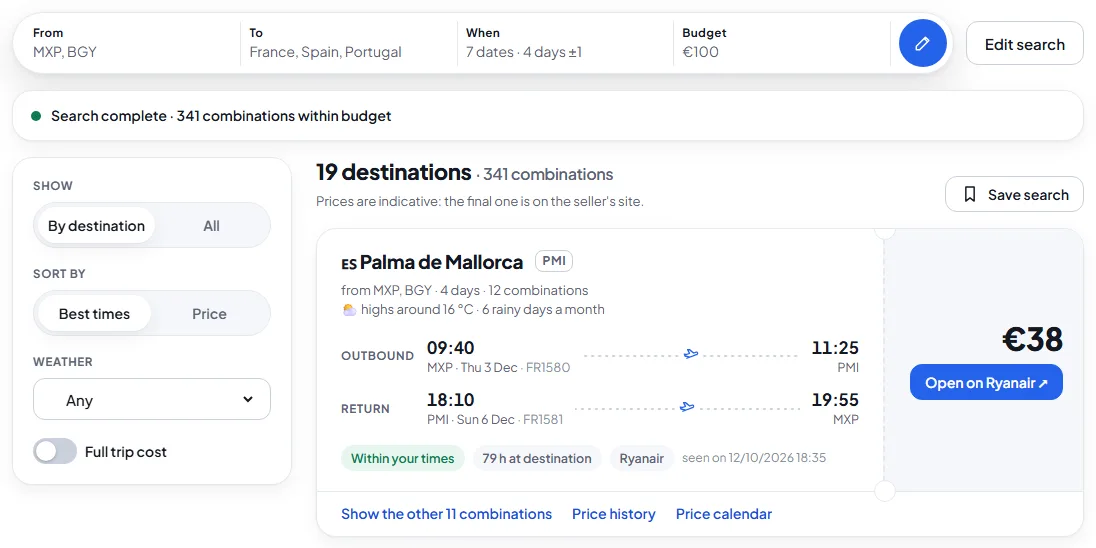
15. By destination

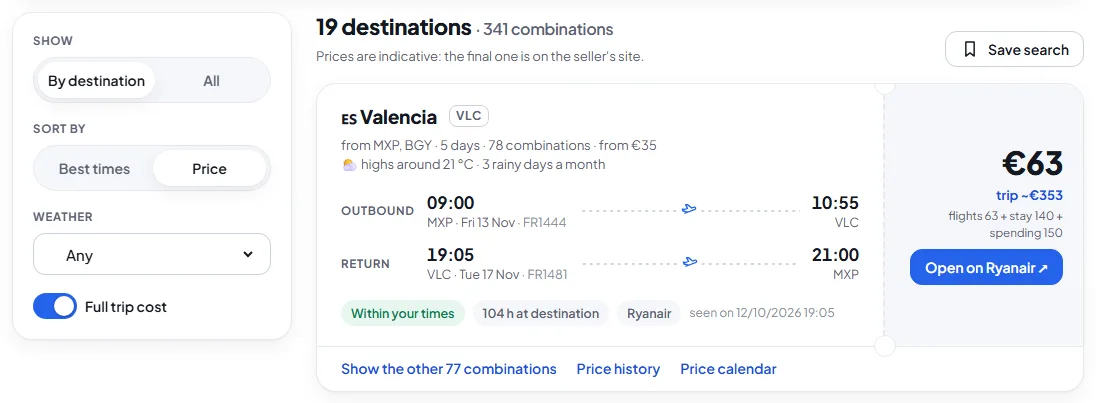
Each card is a destination with its best combination: outbound and return times, actual hours at destination, airline and, on the stub on the right, the total price.

Open takes you to the airline's website with the dates already chosen: the final price is the one you see there.

Show the other combinations lists all the alternatives for that destination. If the price says from, it's the lowest of the day. A ~ before the arrival time means it's estimated.

If the search finds nothing, for example a long-haul flight on exact dates, a box with Google Flights and Skyscanner appears: they open the same search, already filled in.

In the filters, on the left on a computer and at the top on a phone, you can sort by Best times, which puts first the flights that match your times, or by Price.

Destination card with outbound, return, price and Open button
Tap the image to enlarge it

16. Weather and full trip cost

Under each destination's name you see the typical weather for the month you leave: maximum temperature and rainy days, averaged over the last three years.

The Weather menu hides colder destinations: at least 15, 20 or 25 °C.

Turn on Full trip cost and next to the price you see what you'll really spend: flights, plus nights in budget accommodation, plus food and local transport for each day. When you sort by Price, the total is what counts.

Accommodation and daily costs are estimates by country, adjusted for the most expensive cities such as London, Paris or Zurich. They give you a sense of scale.

Results with the weather line and the full trip cost next to the price
Tap the image to enlarge it

17. Price calendar

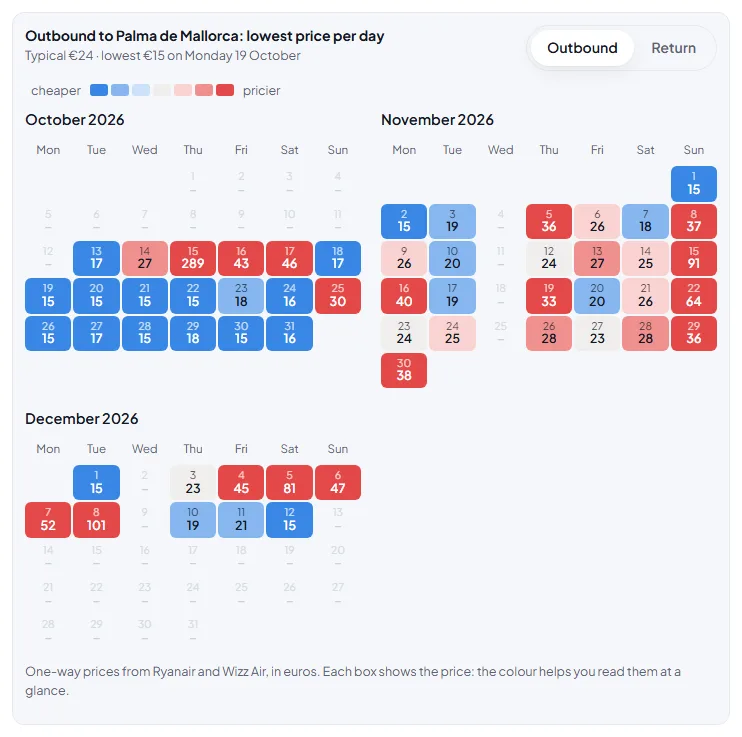
Price calendar, under each destination, shows the one-way price for every day of the next two months. The price is written in each box: days below the typical price are blue, days above it are red.

Use Outbound and Return to switch direction. Tap a day to see the flight's times and airline.

Calendar with each day's one-way price, coloured from blue to red
Tap the image to enlarge it

18. Buy or wait

A label with the reason may appear next to the destination's name: Buy now if the price is among the lowest seen on the route, or if the flight is less than 15 days away. You can wait if it's above normal and the flight is more than thirty days away. Average price in all other cases.

We need at least seven days of price history on the route to give advice: on new routes the label appears after a week.

19. All combinations

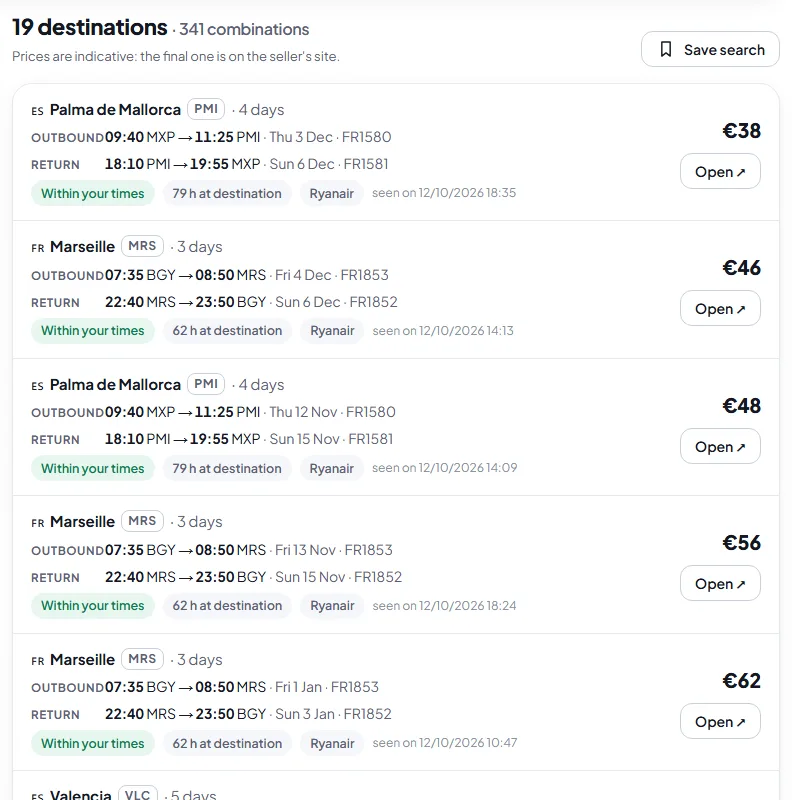
All combinations shows every flight found in one list, without grouping by destination. Long lists load in batches with Show more.

All combinations in a single list
Tap the image to enlarge it

20. Price history

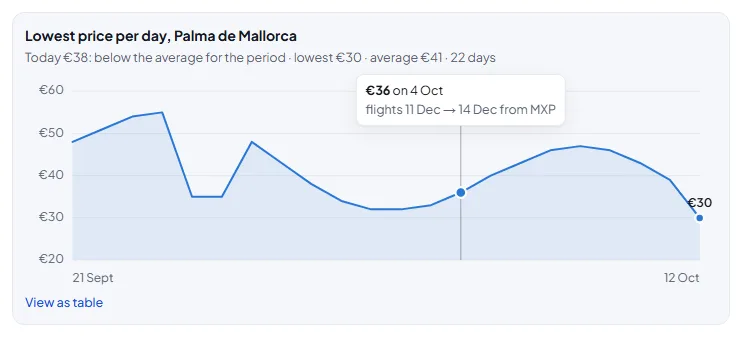
Price history, under each card, shows the lowest price seen each day on that route and tells you whether today's price is low or high compared with normal.

Hover over the chart to read single days, or open the table view.

The history builds itself from everyone's searches and from price alert checks: on new routes it fills up one day at a time. The chart above shows sample data.

Chart of the lowest price over the last few weeks
Tap the image to enlarge it

Ideas and special trips

Three different ways to search: when you don't know where to go, when you travel with someone from another city, and when there's no direct flight.

21. Surprise me

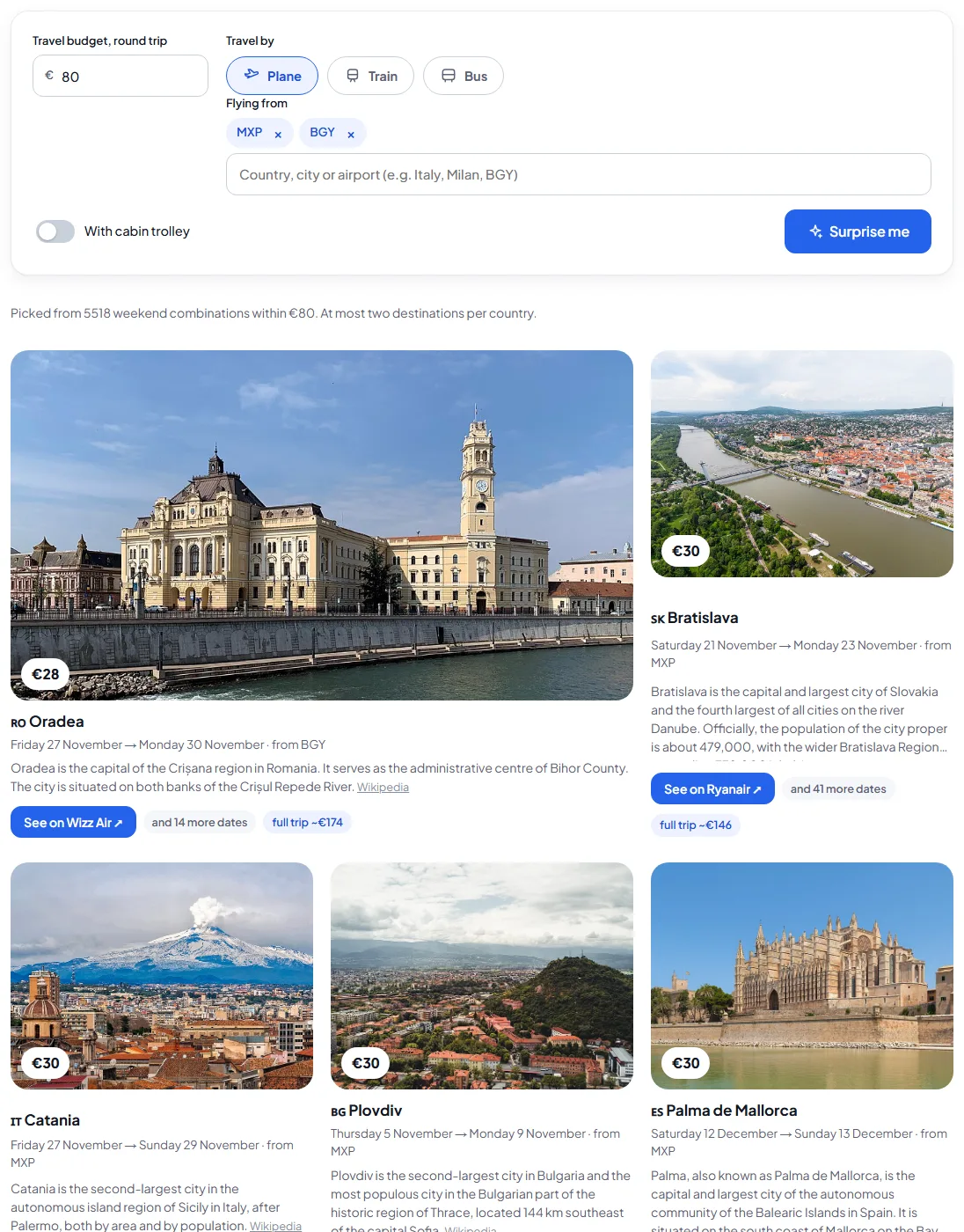
Press Surprise me on the home page or in the site bar. Choose how to travel (plane, train, bus), your budget and where you leave from: we search every weekend of the coming months and suggest five destinations, at most two per country, with a photo and a couple of lines from Wikipedia.

Each card has the dates, the booking link, how many other dates there are for that city and the estimated full trip cost. Your budget and airports are remembered on this device.

Surprise me page with budget, airports and suggested destinations with photos
Tap the image to enlarge it

22. Group trip

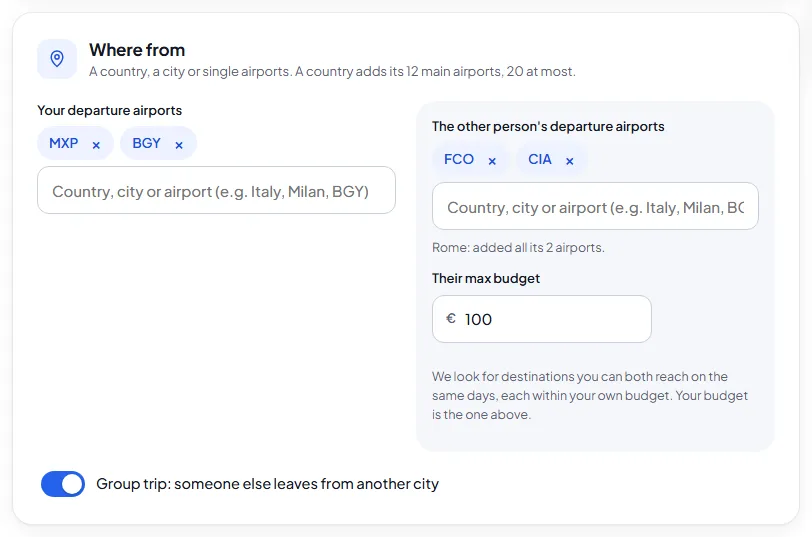
Leaving from Milan while a friend leaves from Naples? In the Departure section turn on Group trip and enter their airports and budget. Your budget is the one at the top.

The rest of the form applies to both of you: destinations, dates, times.

Departure section with group trip turned on, and the other person's airports and budget
Tap the image to enlarge it

23. Shared destinations

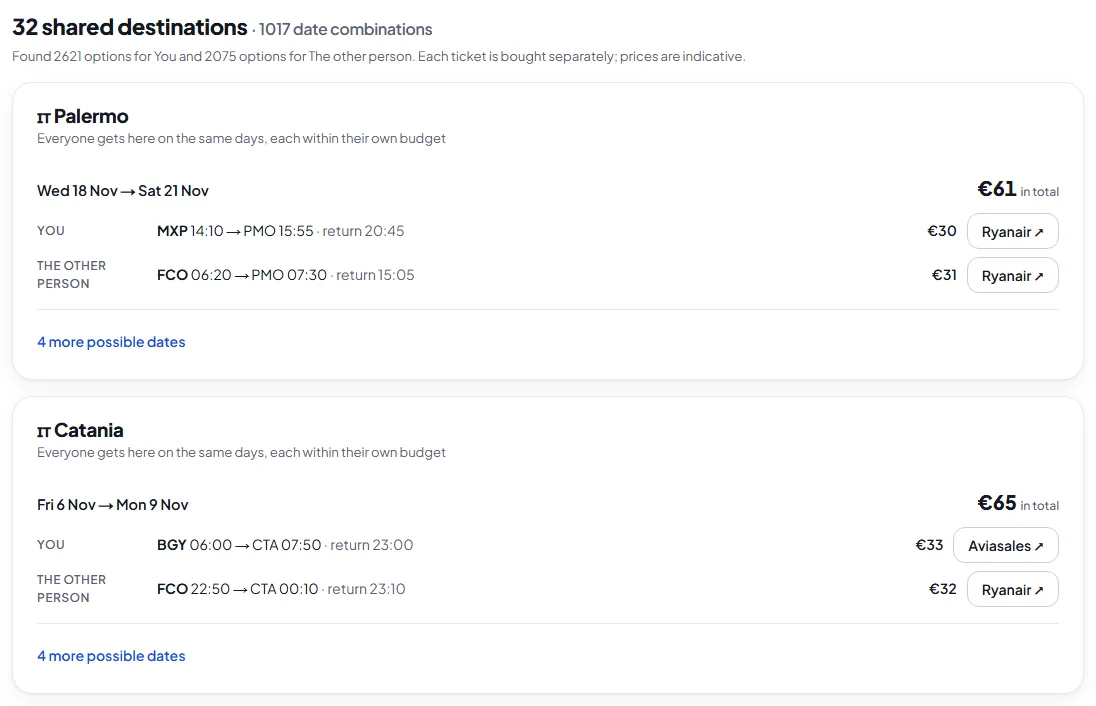
You only see cities where you both arrive on the same days, each within your own budget, with the two tickets and the total. Beauvais and Orly both count as Paris: what matters is the city.

More possible dates shows the alternatives for the same city. Each ticket is bought separately.

Destinations both of you can reach on the same days, with the two tickets and the total
Tap the image to enlarge it

24. Self-transfer

When you pick specific destinations, Self-transfer appears under the results: we combine two Ryanair or Wizz Air flights through another airport, with a layover of at least 2 and a half hours on the same day.

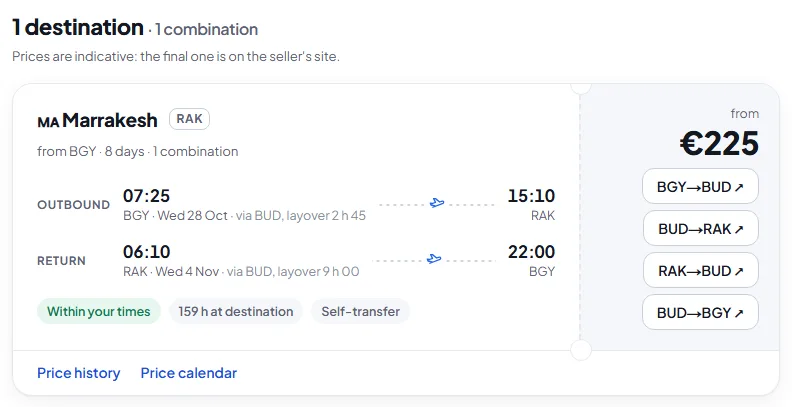
It helps when there's no direct flight or it costs too much: for example Milan to Marrakech via Budapest. Each flight has its own button to book it.

These are separate tickets: if the first flight is late and you miss the second, the airline won't rebook you. Travel with hand luggage only and leave plenty of time.

Trip to Marrakech with a stop in Budapest both ways, one link per flight
Tap the image to enlarge it

Save, get alerts, share

With a free account your searches stay yours and the site checks them again for you.

25. Sign in

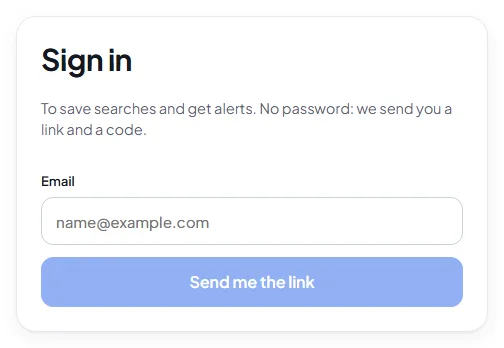
Press Sign in at the top right (on a phone, from the Profile tab) and enter your email: we send you an email from avvisi@dovevolo.com. No password to remember.

In the email you'll find a button, which works on any device, and an 8-digit code. Asked to sign in on your computer but reading the email on your phone? Type the code on the computer, or use the button to sign in on your phone.

If the email doesn't arrive, check your spam folder.

Sign-in page with the email field
Tap the image to enlarge it

26. Save the search

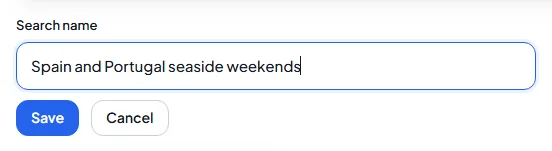
Once you've set up a search press Save search, give it a name and confirm. If you opened a saved search and changed it, Update overwrites it.

Box to name the search you're saving
Tap the image to enlarge it

27. My searches and price alerts

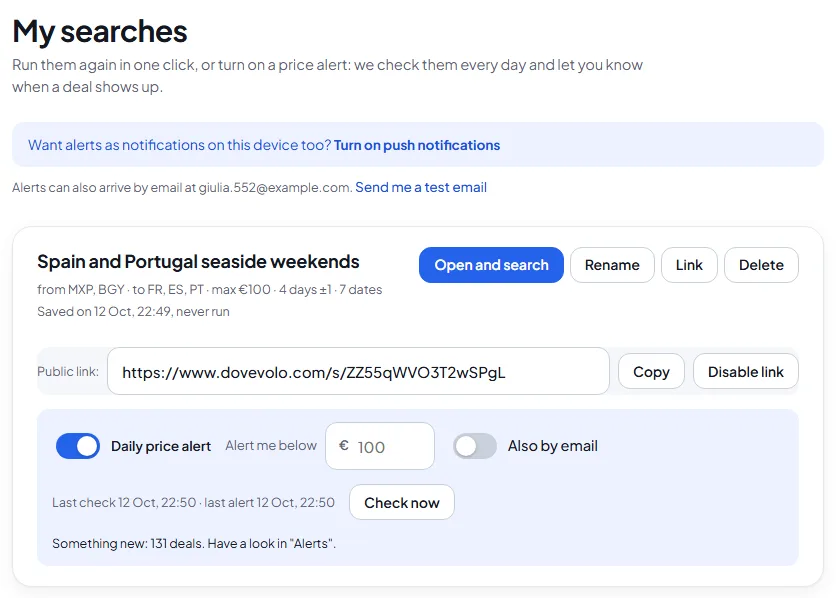
Open and search runs the search again in one click. Rename and Delete do what they say.

Turn on Daily price alert: every morning we check the search again and let you know if new deals appear or prices drop by at least €5 and 5%. At most one alert a day per search.

Alert me below sets the highest price you're interested in; empty means the search budget. Check now runs the check straight away.

Also by email sends the alert by email too. Turn on push notifications sends it as a notification on this device.

On iPhone, push notifications work once you've added the site to your Home Screen.

Saved search with a daily price alert on, a share link and a check just done
Tap the image to enlarge it

28. Alerts

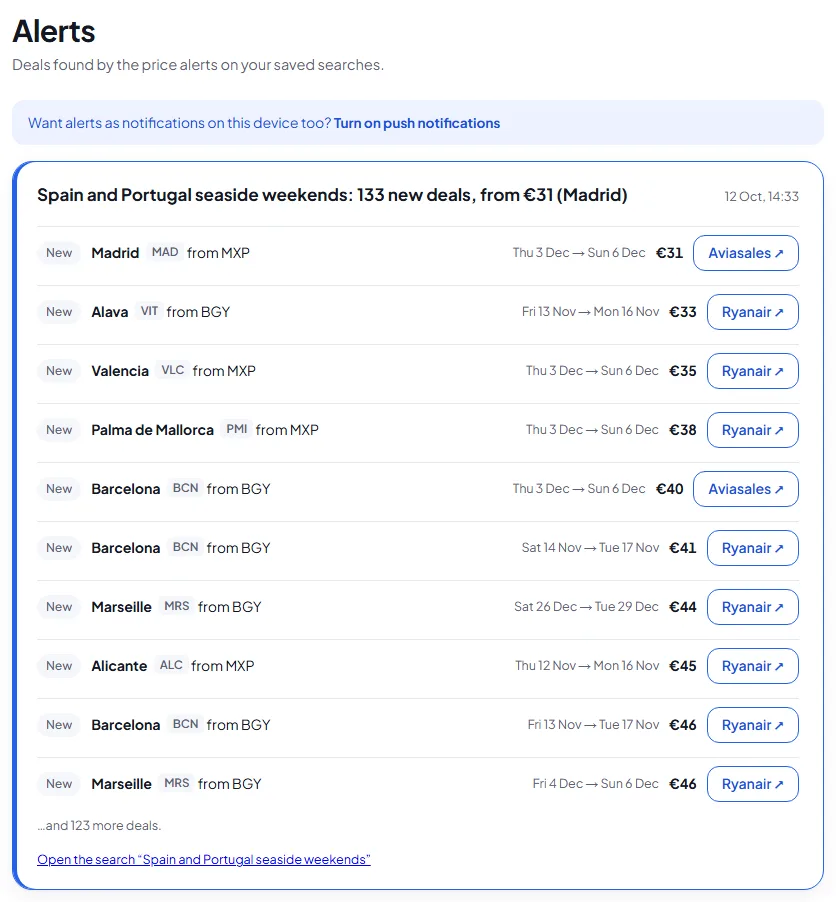
Alerts arrive here, with the number of unread ones next to Alerts in the top bar, or in the bottom bar on a phone.

Each alert lists the deals from the cheapest, says whether they're new or price drops, and has the booking link. At the bottom you can reopen the search that found them.

Alerts page with the deals found by a price alert
Tap the image to enlarge it

29. Share with your travel mates

In My searches press Share and copy the link. Whoever opens it sees your search already running, even without an account, and can save it to their own.

Disable link makes it stop working at any time.

Shared search opened by someone else
Tap the image to enlarge it

On your phone

The site adapts to your phone's screen.

30. On the phone

The Find destinations button always stays at the bottom, above the bar with Search, Surprise me, Searches, Alerts and Profile. The calendar shows one month at a time.

Results open in their own view: tap the summary at the top to go back to the form, or use the back button.

In Profile you'll find language, useful pages and, once signed in, the dark theme.

On iPhone, from Safari's Share menu choose Add to Home Screen: the site opens like an app and can send you notifications.

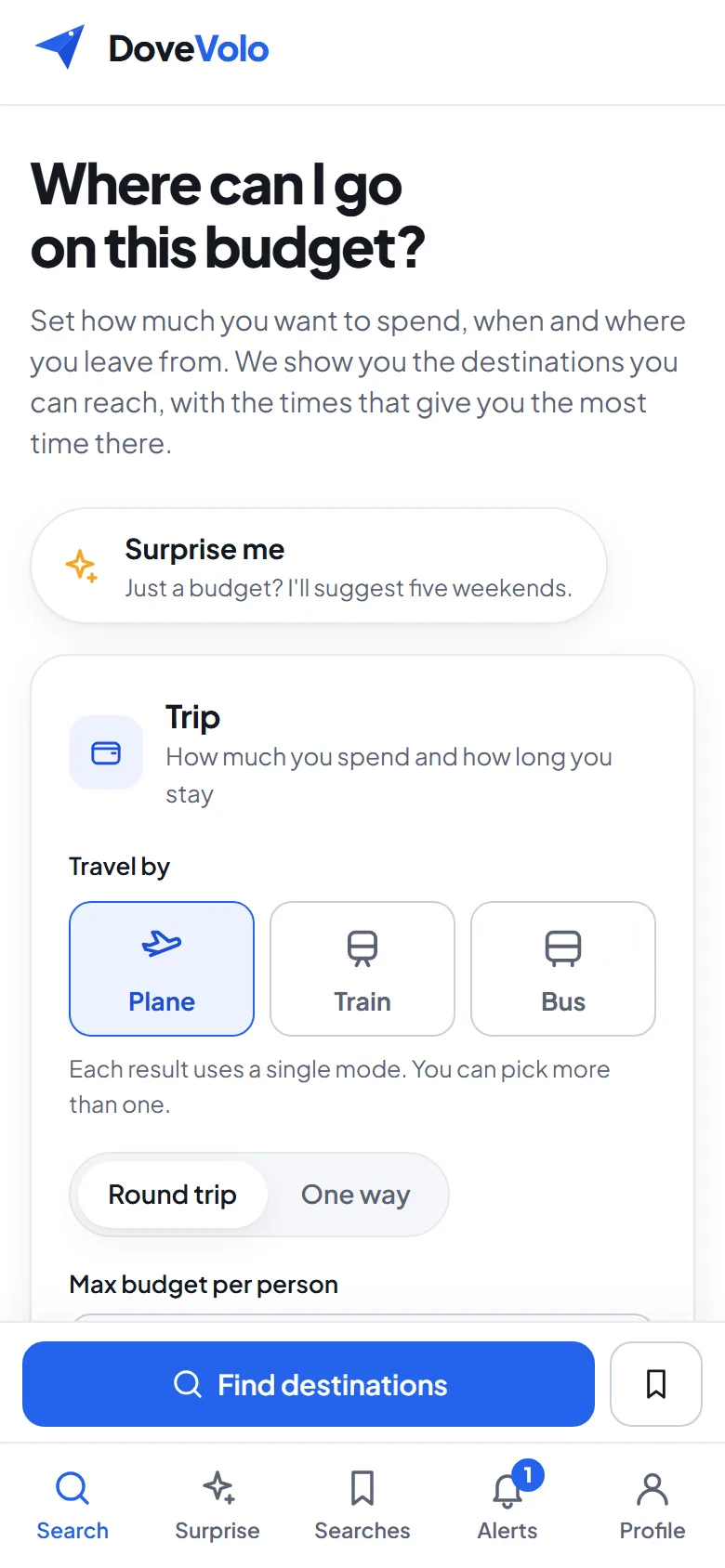
The home page on a phone, with the Find destinations button above the tab bar
Tap the image to enlarge it

Write to us

DoveVolo grows with the ideas of the people who use it.

31. Feedback

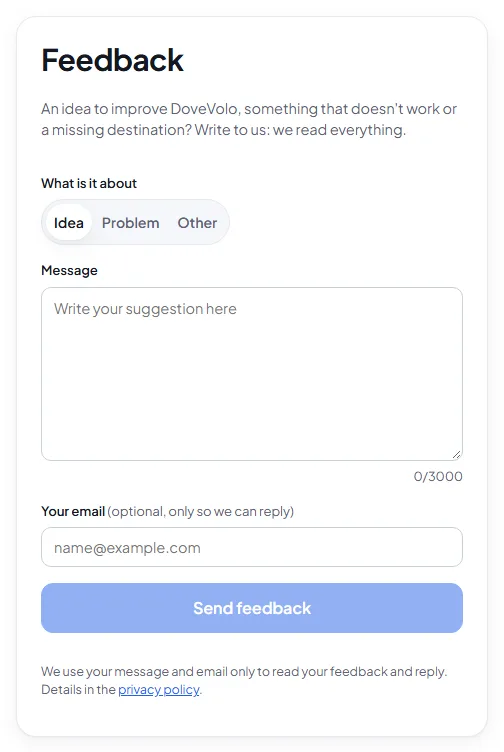
At the bottom of every page and in the Profile tab you'll find Feedback. Choose Idea, Problem or Other and write your message.

The email is optional and only used to reply to you. If you're signed in, it's already filled in.

For a problem, it really helps to include the airports and dates of the search that didn't work.

You don't need an account: anyone can write to us.

Feedback form with type, message and optional email
Tap the image to enlarge it

Ready?

Start with a simple search: your airports, a budget and Weekends. Or let us choose with Surprise me.

How it works · DoveVolo